Raylight Mac version 3.0 has been released.
Get the update here
What's new in 3.0:
AVC-Intra Support
Direct Import into Final Cut Pro
Metadata in the Final Cut Pro Bin
Full details can be found here
Showing posts with label RaylightMac. Show all posts
Showing posts with label RaylightMac. Show all posts
Sunday, April 4, 2010
Friday, April 25, 2008
Raylight Mac 2.08
Raylight Mac version 2.08 has been released.
Get the update Here
What is new in 2.08
Get the update Here
What is new in 2.08
- The Scan Volumes option has been renamed Scan Removable Media.
- A delete button was added to allow you to remove items in the Other Scan Locations list. The delete key also works for deleting the selected item.
- A 64 GB option was added to the P2 Options for the Card Size.
- Bug Fix: When the Activation window displays and the serial number had been entered previously and saved in options.txt, the serial number appeared backwards.
- Bug Fix: The System ID may change on some computers and cause the activation screen to pop up.
- Bug Fix: In some cases, the default hard drive was being inadvertently scanned when "Scan Removable Media" was selected. This could cause a long delay and it would appear that Raylight was hung up.
- Bug Fix: Remove pulldown was not working if the default Target Frame Rate of 23.976 was used without ever having clicked on the choices for Target Frame Rate.
- Bug Fix: P2 card creation was not working on the PPC architecture.
- Bug Fix: P2 card creation was not handling write failures properly (locked destination folder).
- Other minor fixes.
Friday, February 8, 2008
Raylight Mac 2.07
This update primarily contains User Interface improvements and adds some options for controlling how scanning for files is done. Get it HERE
Here is a complete list of what is new:
Here is a complete list of what is new:
- A new options drawer has been added to store and organize all options related to MXF conversion.
- An option has been added to allow you to bring back the display of the Quick Start Guide on startup.
- The option Store Links In Root Of Card Images has been added allowing links to be stored at the same level as the CONTENTS folder.
- More Scan Locations has been renamed Other Scan Locations and reimplemented as a list of folders.
- You can now add a folder to the Other Scan Locations using a standard folder select window.
- Scanning all mounted volumes is now an option and can be turned off.
- You may now exclude folder names or volume names of a certain name. These are not complete paths but a SINGLE folder name such as BACKUPS or ARCHIVE
- All configurable options are now being saved.
- All subfolders of mounted volumes and Other Scan Locations are scanned. With the addition of the new options not to scan mounted volumes, and the ability to exclude certain folders, users should have complete control of where they want to store their P2 images.
- The main Raylight window is now a drag target for folders to add to the Other Scan Locations, or for individual quicktime files to be converted to P2 card images. Folders can also be dragged to the MXF Options drawer.
- The output window is now a collapsible window which you can choose to display or not display.
- Messages to the output window now display immediately rather than after a scan is done.
- The output window now displays information text during background scanning. Previously only a manual scan would output information to the window.
- You can now select a quicktime for P2 conversion using a standard file open window.
- A progress icon has been added to the main window which animates whenever a scan is in progress.
- The Scan Now button is disabled when background scanning is enabled.
- A skip button has been added to the quicktime to P2 conversion options. Pressing it will skip the currently discovered file and allow the next file to be discovered (if background scanning is enabled). Skipping marks a file as being processed so that it does not get rediscovered.
Thursday, November 22, 2007
Raylight for Mac 2.06
Raylight/Mac is now up to release 2.06. This release fixes a number of bugs. They are:
1. P2 Maker now automatically removes the file lock on LASTCLIP.TXT when you are writing directly to a P2 Card.
2. P2 Maker now writes continuous timecode into the video streams for all formats.
3. Fixed a problem with scanning DV-NTSC MXF files.
4. Fixed a problem where changing the quicktime folder where P2 Maker looks for quicktimes would cause the application to crash.
5. Fixed a problem where running the application out of a disk image or external drive would cause playback problems with link files made from MXF files on the system drive.
6. Fixed a problem where the "Store links with MXF files" option was ignored when scanning a folder in "More Scan Locations" which contained multiple card images.
1. P2 Maker now automatically removes the file lock on LASTCLIP.TXT when you are writing directly to a P2 Card.
2. P2 Maker now writes continuous timecode into the video streams for all formats.
3. Fixed a problem with scanning DV-NTSC MXF files.
4. Fixed a problem where changing the quicktime folder where P2 Maker looks for quicktimes would cause the application to crash.
5. Fixed a problem where running the application out of a disk image or external drive would cause playback problems with link files made from MXF files on the system drive.
6. Fixed a problem where the "Store links with MXF files" option was ignored when scanning a folder in "More Scan Locations" which contained multiple card images.
Wednesday, October 31, 2007
Raylight/Mac 2.04
Raylight for Mac 2.04 is released which fixes some problems with the P2 Card files generated by the P2 Maker function. When playing back clips made by Raylight in the HVX200 camera, you will no longer see the red "X" in the thumbnail view. You will however see a blue "E" which means the footage was edited.
Also we have fixed some problems with importing the MXF files into Avid Express Pro HD or Avid Media Composer, or Final Cut Pro 6 Log and Transfer. You can now take P2 Cards created with Raylight/Mac and import them into these programs.
If you are a registered user of Raylight/Mac get it at http://dvfilm.com/update
Also we have fixed some problems with importing the MXF files into Avid Express Pro HD or Avid Media Composer, or Final Cut Pro 6 Log and Transfer. You can now take P2 Cards created with Raylight/Mac and import them into these programs.
If you are a registered user of Raylight/Mac get it at http://dvfilm.com/update
Friday, October 5, 2007
Raylight for Mac 2
We've released version 2 of Raylight for Mac. Existing users can update their copy at dvfilm.com/update.
There are some important changes:
1. Raylight now supports the authoring of P2 Cards. You can actually write directly to a card by exporting a DVCPROHD quicktime from FCP, and it is automatically converted to an MXF file on the card. It also works with DVCPRO50, DVCPRO and DV.
2. The price for new users is now $195, we had to raise the price because of new development and support costs.
3. Raylight Mac now requires product activation. The activation process is simple and be done on any computer through one webpage, dvfilm.com/activate. The activation is keyed to each computer, so if you are using Raylight on multiple computers, you must purchase additional licenses (as was already required in the license agreement). Contact sales at DVFIlm.com for additional licenses or get them directly at DVFilmStore.com
There are some important changes:
1. Raylight now supports the authoring of P2 Cards. You can actually write directly to a card by exporting a DVCPROHD quicktime from FCP, and it is automatically converted to an MXF file on the card. It also works with DVCPRO50, DVCPRO and DV.
2. The price for new users is now $195, we had to raise the price because of new development and support costs.
3. Raylight Mac now requires product activation. The activation process is simple and be done on any computer through one webpage, dvfilm.com/activate. The activation is keyed to each computer, so if you are using Raylight on multiple computers, you must purchase additional licenses (as was already required in the license agreement). Contact sales at DVFIlm.com for additional licenses or get them directly at DVFilmStore.com
Thursday, August 16, 2007
P2 Maker for Mac
In a few weeks, Raylight/Mac will be extended to support the authoring of P2 Cards from FCP. You will export a quicktime from FCP, and when it's finished, the P2 Maker "Drawer" (see screen grab here ) will open and allow you to create the P2 card with the movie clip on it.
This feature is planned for Raylight/Mac 2.0 and will be a free upgrade to all users!
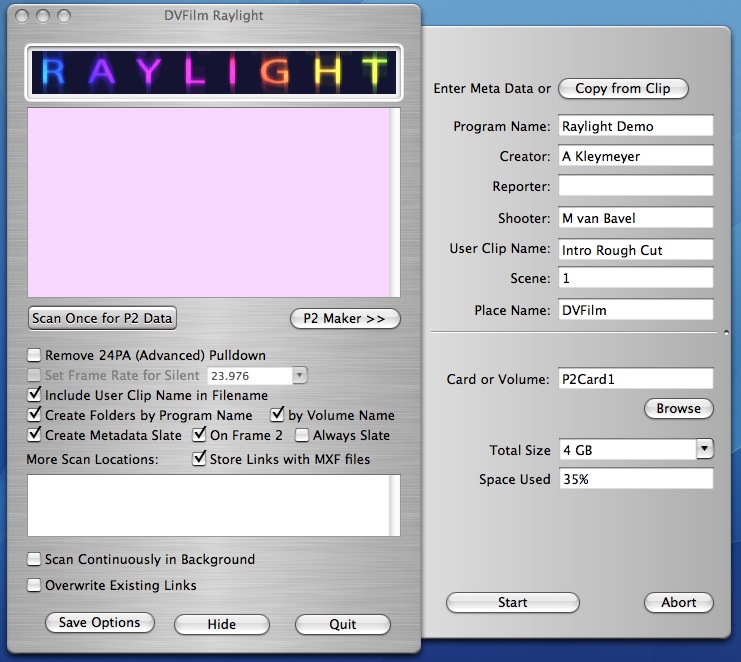
This feature is planned for Raylight/Mac 2.0 and will be a free upgrade to all users!
Saturday, August 11, 2007
Bug Release 1.07
Version 1.07 has been released, which introduces no new features but corrects a few problems with previous releases:
- Background scanning no longer logs diagnostic messages to the front panel. This was done to improve the reliability of background scanning and reduce usage of system resources. If a situation arises where is is necessary to view the diagnostic messages, it can be done with the "Scan Once" button.
- A problem was fixed with incorrect length of the audio tracks.
- The diagnostic window is always scrolled to the bottom after an option button is pressed or a scan is completed.
- The default options have been changed, so that the defaults for "User Clip Name", "Program Name" and "Store links with MXF Files" are now off. The reason for this is that these options can confuse new users of the program until they understand more about them. The defaults can be overriden by saving your own default options with "Save Options".
Sunday, July 15, 2007
Raylight for Mac 1.06 is out!
Raylight for Mac 1.06 is out, registered users can get it at dvfilm.com/update
Read about it below, or read the help file here.
Read about it below, or read the help file here.
Friday, July 6, 2007
Raylight for Mac 1.06 coming
1.06 will be out soon. It offers improved file organization, the ability to save program options, a quickstart guide for new users, and allows you to put the metadata slate on frame 2 so you can see the video instead of the slate in the Final Cut Pro thumbnails.
The next release after 1.06 will concentrate on new pulldown removal features such as removing 3:2, 2:2 pulldown from 60P and 50P, variable speed pulldown, and the ability to set the frame rate for silent clips.
Also coming is a Raylight DVCPROHD codec that can be used in place of the Apple codec. This is mainly of interest to users that do not have FCP installed on their computer or cannot get access to a copy of FCP.
The next release after 1.06 will concentrate on new pulldown removal features such as removing 3:2, 2:2 pulldown from 60P and 50P, variable speed pulldown, and the ability to set the frame rate for silent clips.
Also coming is a Raylight DVCPROHD codec that can be used in place of the Apple codec. This is mainly of interest to users that do not have FCP installed on their computer or cannot get access to a copy of FCP.
Tuesday, July 3, 2007
Raylight for Mac 1.05
6-24-2007
Raylight for Mac 1.05 is out. It adds timecode and metadata support, and support for DVCPRO50. You can view metadata from the camera in the Final Cut Pro timeline, or from the Quicktime player. Clips can be automatically named from the "User Clip Name" metadata item, and organized into folder names derived from the "Program Name" item.
Raylight for Mac 1.05 is out. It adds timecode and metadata support, and support for DVCPRO50. You can view metadata from the camera in the Final Cut Pro timeline, or from the Quicktime player. Clips can be automatically named from the "User Clip Name" metadata item, and organized into folder names derived from the "Program Name" item.
Monday, January 1, 2007
Logging in Raylight
When Raylight is processing files, progress messages will be displayed in the output window. The output window can be opened by clicking the triangle in the main Raylight Window.
You can have Raylight display more detailed messages by setting the LogVerbose value to 1 in the file /Users/Shared/Raylight/options.txt:
LogVerbose = 1
You can have Raylight display more detailed messages by setting the LogVerbose value to 1 in the file /Users/Shared/Raylight/options.txt:
LogVerbose = 1


Problems when Final Cut Pro starts
Q. When I start FCP, even though I have told it to NOT load the last project, there is a long delay and I get errors about not being able to locate files.
A. This may occur if you had a project that used quicktime link files such as the ones created by Raylight, and those files pointed to are no longer available. With FCP closed, you might try clearing your FCP preferences.
This article explains how to clear the FCP preferences. Though it is for FCP 4.0 It is still applicable to the lastest FCP. I have pasted the contents below:
Here is another thread on the subject.
A. This may occur if you had a project that used quicktime link files such as the ones created by Raylight, and those files pointed to are no longer available. With FCP closed, you might try clearing your FCP preferences.
This article explains how to clear the FCP preferences. Though it is for FCP 4.0 It is still applicable to the lastest FCP. I have pasted the contents below:
Learn how to resolve issues caused by unusable preference files in Final Cut Pro 4.
When troubleshooting Final Cut Pro, one step you can take is to delete the Final Cut Pro preference files. Doing this restores Final Cut Pro to the default settings and behavior. These files contains user preferences for scratch disk settings, capture settings, window layouts, and so forth.
To delete the Final Cut Pro 4 preferences files, do the following:
1. Quit Final Cut Pro 4.
2. Click the Finder icon in the Dock.
3. From the Go menu, choose Go to Folder.
4. Type: ~/Library/Preferences/ Note: The tilde "~" refers to your home directory. For more information see "Mac OS X: Using Your Home Directory".
5. Click Go.
6. Drag the file named "com.apple.FinalCutPro.plist" to the Trash (Figure 1).
7. Double-click the folder named "Final Cut Pro User Data".
8. Drag the file named "Final Cut Pro 4.0 Preferences" to the Trash (see Figure 2).
9. Drag the file named "Final Cut Pro POA Cache" to the Trash (Figure 2).
[Be sure to Empty the Trash]
10. Open Final Cut Pro.
Here is another thread on the subject.
Changing the output folder
Raylight Mac will store all generated files in the default folder /Users/Shared/Raylight. This is also where Raylight stores some system files that it needs including the options.txt file where settings for Raylight are stored.
To change where Raylight stores generated files such as Quicktime link files and P2 card images (P2Maker feature) you can edit the options.txt file and modify the OutputFolder option.
For example, if you have a folder on your desktop named Media you can edit options.txt and replace this line:
OutputFolder = /Users/Shared/Raylight
with this:
OutputFolder = /Users/rak/Desktop/Media
The folder path following the equal sign is the Unix file path representation of a folder. If you aren't sure what that is for a given folder, use the Finder program and highlight the folder you want to make the OutputFolder. Hold down the Command (Apple) key while you press the 'i' key. This will display the Info panel for the folder. You will see the folder path leading up to your folder next to the label "Where:". Type this folder path followed by the folder name, to the right of the equal sign leaving a space between the equal sign and the file path.
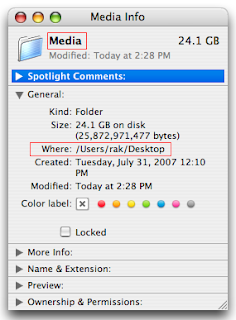
To change where Raylight stores generated files such as Quicktime link files and P2 card images (P2Maker feature) you can edit the options.txt file and modify the OutputFolder option.
For example, if you have a folder on your desktop named Media you can edit options.txt and replace this line:
OutputFolder = /Users/Shared/Raylight
with this:
OutputFolder = /Users/rak/Desktop/Media
The folder path following the equal sign is the Unix file path representation of a folder. If you aren't sure what that is for a given folder, use the Finder program and highlight the folder you want to make the OutputFolder. Hold down the Command (Apple) key while you press the 'i' key. This will display the Info panel for the folder. You will see the folder path leading up to your folder next to the label "Where:". Type this folder path followed by the folder name, to the right of the equal sign leaving a space between the equal sign and the file path.

Unable to view link files in Final Cut Pro
Q. When I try to open a .mxf.mov link file created by Raylight, Final Cut Pro appears to hang. Some symptoms:
If you have FCP set to load the last project and it is taking a very long time to load due to it trying to search for missing MXF files, you might want to move or clear the FCP preferences to allow you to start FCP. THIS post provides help in clearing FCP preferences.
- FCP displays "searching for data in [filename]"
- FCP appears to hang with a spinning beachball
- The original MXF files have moved
- The volume name where the MXF files reside has changed
- The volume where the MXF file resides is offline or not connected
- The folder name where the MFX files reside has changed.
- Launch Quicktime Pro
- Load a Quicktime link file created by Raylight
- From the menu, select Window...View Movie Properties
- Select the Resources Tab
- Review the path of the original .MXF file and make sure it is accessible at that location
If you have FCP set to load the last project and it is taking a very long time to load due to it trying to search for missing MXF files, you might want to move or clear the FCP preferences to allow you to start FCP. THIS post provides help in clearing FCP preferences.
Link files don't play back properly in Final Cut Pro
Q. Raylight creates the links, but the video is all white or all black, or random noise.
A. Delete the link and rescan the MXF files. Make sure each folder in the path to your MXF files has a folder name less than 32 characters. Make sure the drive is formatted Mac OS Extended if you use long file names such as file names with the MetaData "User Clip Name". Make sure you have the DVCPROHD components installed by FCP 5 or 6. They are in the Library/Quicktime folder on your system drive, six files that start with "DVCPROHD" and end with ".component". If the slate frame is visible but no other frames are, most likely the original MXF files have moved or the path to the MXF files have a bad character or uses a folder name greater than 32 characters. If your source files are stored on an external volume, try renaming the volume to a shorter name with no spaces or special characters.
Q: Links render OK in FCP but in real-time playback show up as black
A. Make sure the sequence settings for frame rate match the clip frame rate.
If you have clips with pulldown, remove the pulldown in Raylight when you scan them by using the pulldown removal option.
If you are importing clips of a different frame rate that have no pulldown (e.g. 60P clips into a 24P sequence), instead import the clips into a 60P project, then export a 24P quicktime in ProRes or similar format, then import the exported clip into your 24P sequence.
A. Delete the link and rescan the MXF files. Make sure each folder in the path to your MXF files has a folder name less than 32 characters. Make sure the drive is formatted Mac OS Extended if you use long file names such as file names with the MetaData "User Clip Name". Make sure you have the DVCPROHD components installed by FCP 5 or 6. They are in the Library/Quicktime folder on your system drive, six files that start with "DVCPROHD" and end with ".component". If the slate frame is visible but no other frames are, most likely the original MXF files have moved or the path to the MXF files have a bad character or uses a folder name greater than 32 characters. If your source files are stored on an external volume, try renaming the volume to a shorter name with no spaces or special characters.
Q: Links render OK in FCP but in real-time playback show up as black
A. Make sure the sequence settings for frame rate match the clip frame rate.
If you have clips with pulldown, remove the pulldown in Raylight when you scan them by using the pulldown removal option.
If you are importing clips of a different frame rate that have no pulldown (e.g. 60P clips into a 24P sequence), instead import the clips into a 60P project, then export a 24P quicktime in ProRes or similar format, then import the exported clip into your 24P sequence.
Subscribe to:
Posts (Atom)